• Home
Network Headlines
keep your memories alive
Hardware and Software Guides

A Guide on Using A VPN with Amazon’s FireStick TV

by DMG Webmaster December 31, 2023
written by DMG Webmaster

In the world of streaming and digital entertainment, pairing your Amazon Fire TV Stick with a Virtual Private Network (VPN) can significantly enhance your viewing experience. This professional guide will walk you through enabling, connecting, and actively using a VPN with your Amazon Fire TV Stick, highlighting the benefits and offering tips to make the best out of this powerful combination.

Why Pair a VPN with Your Amazon Fire TV Stick?

1. Access Geo-Restricted Content: A VPN allows you to bypass geographical restrictions, giving you access to a broader range of streaming services and content unavailable in your region.

2. Enhanced Privacy and Security: Streaming activities, especially when using third-party apps, can expose you to privacy risks. A VPN encrypts your internet connection, keeping your viewing habits private.

3. Improved Streaming Performance: Some ISPs throttle bandwidth for streaming services. A VPN can prevent this, potentially improving streaming quality and reducing buffering.

Setting Up a VPN on Your Amazon Fire TV Stick

1. Choose a Compatible VPN: Not all VPNs are compatible with the Amazon Fire TV Stick. Select a VPN known for its streaming capabilities, like ExpressVPN, NordVPN, or IPVanish.

2. Install the VPN App:

  • Go to the main menu on your Fire TV Stick.
  • Select ‘Search’ and type in the name of your VPN.
  • Choose the VPN app from the search results and download it.

3. Log In to the VPN App:

  • Open the VPN app on your Fire TV Stick.
  • Log in using your VPN account credentials.

4. Connect to a VPN Server:

  • Select a server location within the VPN app. If you’re aiming to access content from a specific country, choose a server located there.
  • Connect to the server.

Actively Using a VPN with Your Amazon Fire TV Stick

1. Consistent Connection: Always ensure your VPN is connected before launching any streaming app. This guarantees that your streaming activities are secure and private.

2. Server Switching: Experiment with different servers for optimal speed and access to various content libraries. Some servers may offer better speeds or more reliable connections than others.

3. Regular App Updates: Keep both your VPN and streaming apps updated for a smooth and secure experience.

Tips for Optimizing the VPN-Fire TV Stick Combo

1. Choose the Right VPN Protocol: Different VPNs offer various protocols that balance speed and security. Protocols like OpenVPN are a good choice for streaming due to their reliability and performance.

2. Use a Dedicated IP: Some VPNs offer a dedicated IP option. This can be beneficial for consistently accessing streaming services that may otherwise block shared VPN IPs.

3. Manage Bandwidth Usage: High-quality streaming consumes significant bandwidth. Ensure your internet plan can handle the load, especially when using a VPN.

4. Explore Content Libraries: With a VPN, you’re not limited to your country’s content library. Explore libraries from other countries for a wider range of movies and TV shows.

5. Utilize VPN Split Tunneling: If your VPN offers split tunneling, use it to choose which apps go through the VPN. You can have your streaming apps secured by the VPN while other apps use a direct internet connection.

Conclusion

Pairing your Amazon Fire TV Stick with a VPN opens up a world of possibilities, from accessing a diverse range of content to enhancing your privacy and streaming quality. By following this guide to enable, connect, and actively use a VPN on your Fire TV Stick, you’re set to enjoy a richer and more secure streaming experience. Dive in and explore the vast ocean of content at your fingertips, all while maintaining your digital privacy and security.

December 31, 2023 0 comment
0 FacebookTwitterPinterestEmail
Hardware and Software Guides

A Guide to Using a VPN with Your Kodi Device

by DMG Webmaster December 31, 2023
written by DMG Webmaster

Are you looking to elevate your Kodi experience with enhanced privacy and unrestricted access to content? Installing a VPN (Virtual Private Network) on your Kodi device is a smart way to achieve this. Whether you’re using Kodi on a dedicated streaming device, a computer, or a smart TV, setting up a VPN can unlock new possibilities and protect your streaming activities. Let’s walk through the process.

Why Use a VPN with Kodi?

Before we dive into the setup, let’s understand why a VPN is a game-changer for Kodi users. A VPN encrypts your internet connection, keeping your streaming habits private. This is especially important if you’re accessing content that’s geo-restricted or using add-ons that may operate in a legal gray area. Plus, a VPN can prevent ISP throttling, ensuring smooth, buffer-free streaming.

Method 1: Installing a VPN App on Your Kodi Device

If your Kodi device supports native apps (like Android TV boxes, smartphones, or tablets), this method is straightforward.

  1. Choose a VPN Service: Pick a VPN provider known for strong encryption, fast speeds, and Kodi compatibility. Services like NordVPN, ExpressVPN, and IPVanish are popular choices among Kodi users.
  2. Download and Install the VPN App: Go to your device’s app store, search for your chosen VPN’s app, and install it.
  3. Launch the VPN and Log In: Open the VPN app, enter your credentials, and log in.
  4. Connect to a VPN Server: Select a server location. If you’re looking to access geo-specific content, choose a server in the relevant country.
  5. Open Kodi and Start Streaming: With the VPN connected, launch Kodi and enjoy secure, unrestricted access to your favorite content.

Method 2: VPN Installation on Kodi via Add-On

Some VPN services offer dedicated add-ons for Kodi, making the process even more integrated.

  1. Subscribe to a VPN Service: Choose a VPN provider that offers a Kodi add-on.
  2. Install the VPN Add-On in Kodi: Open Kodi, go to ‘Add-ons’, and select ‘Download’. Find the VPN add-on and install it.
  3. Configure and Connect: Open the add-on, enter your VPN login details, and connect to your desired server.
  4. Enjoy Kodi with Enhanced Privacy: With the VPN running via the add-on, your streaming on Kodi is secure and private.

Method 3: Installing a VPN on Your Router

If Kodi runs on a device that doesn’t support VPN apps or add-ons (like some smart TVs or Apple TV), installing a VPN on your router is a great solution.

  1. Choose a Router-Compatible VPN: Ensure the VPN service offers router compatibility. Some services provide specific firmware for routers.
  2. Configure Your Router: Access your router’s admin panel by typing its IP address into a web browser. Enter the VPN details into your router’s VPN or advanced settings section.
  3. Connect Your Kodi Device to the Router: Ensure your Kodi device is connected to the VPN-enabled router.
  4. Stream on Kodi with VPN Protection: Your entire network, including the Kodi device, is now using a secure VPN connection.

Additional Tips

  • Use a Reliable Internet Connection: VPNs can sometimes slow down your connection, so ensure your internet speed is sufficient for streaming.
  • Regularly Update Software: Keep both your VPN and Kodi updated for optimal performance and security.
  • Choose the Right Server: Experiment with different servers for the best speed and content access.
  • Stay Informed: Be aware of the legal and ethical implications of streaming certain content on Kodi.

Conclusion

Setting up a VPN on your Kodi device enhances your streaming experience by providing privacy, security, and freedom from geo-restrictions. Whether you opt for a direct app installation, a Kodi add-on, or a router-based approach, a VPN is a valuable tool for any Kodi user.

December 31, 2023 0 comment
0 FacebookTwitterPinterestEmail
Hardware and Software Guides

Unlocking Online Privacy on Your Mac

by DMG Webmaster December 31, 2023
written by DMG Webmaster

Are you looking to boost your online privacy and access global content from your MacBook or iMac? Setting up a VPN (Virtual Private Network) on macOS is your ticket to a more secure and unrestricted internet experience. Whether you prefer a straightforward app-based approach, a manual configuration, or a more network-wide solution via your router, this guide covers it all. Let’s dive in!

Why a VPN on Your Mac?

Using a VPN on your Mac encrypts your internet connection, shielding your activities from prying eyes. It’s ideal for secure browsing, especially on public Wi-Fi networks, and it allows you to bypass geo-restrictions to access a wider range of online content.

Method 1: Using a VPN Application

  1. Select a VPN Service: Choose a reputable VPN provider. Options like NordVPN, ExpressVPN, and Surfshark are popular for their strong security features, speed, and user-friendly macOS apps.
  2. Download and Install the VPN App: Visit the VPN provider’s website, sign up, and download their app for macOS.
  3. Install the VPN Application: Open the downloaded file and follow the prompts to install the app. This typically involves dragging the VPN app icon to your Applications folder.
  4. Launch the VPN and Log In: Open the VPN application from your Applications folder and log in using your account credentials.
  5. Choose a Server and Connect: Most VPN apps allow you to select a server location. Choose one that suits your needs (for speed or content access) and click connect.
  6. Enjoy Secure and Private Browsing: Once connected, your Mac’s internet traffic is encrypted, enhancing your online privacy and security.

Method 2: Manual VPN Configuration on macOS

If you prefer not to install third-party apps, macOS allows you to set up a VPN connection manually.

  1. Gather VPN Information: Obtain the necessary details from your VPN provider, like the server address, VPN type, and your login credentials.
  2. Open Network Preferences: Go to ‘System Preferences’ > ‘Network’. Click the ‘+’ icon at the bottom left to add a new VPN connection.
  3. Enter VPN Details: Select ‘VPN’ from the Interface dropdown menu. Fill in the VPN Type, Service Name, and other details provided by your VPN service.
  4. Configure and Connect: Enter your account name and other required information. Then, click ‘Authentication Settings’ to enter your password. Once done, click ‘Apply’, then ‘Connect’.

Method 3: Installing a VPN on Your Router

Installing a VPN on your router provides network-wide VPN protection, including for devices that don’t support VPNs natively.

  1. Select a Compatible VPN: Ensure that both your router and chosen VPN service are compatible. Some VPNs offer router-specific firmware.
  2. Access Your Router Settings: Type your router’s IP address into a web browser to access its settings.
  3. Configure the VPN: Follow the instructions provided by your VPN service to input the VPN settings into your router.
  4. Save and Reboot: After configuring the settings, save them and reboot your router. Your entire network, including your Mac, is now under VPN protection.

Additional Tips for VPN Use on Mac

  • Enable a Kill Switch: If available, use a VPN kill switch feature to prevent data leaks if the VPN connection drops unexpectedly.
  • Keep Your VPN Updated: Regularly update your VPN app to benefit from the latest security improvements and features.
  • Check for IP and DNS Leaks: Periodically verify that your VPN is effectively hiding your IP address and securing your DNS queries.
  • Use Responsibly: Always adhere to legal and ethical guidelines when using a VPN.

Wrapping Up

Whether you choose a dedicated VPN app, a manual setup, or a router-based solution, setting up a VPN on your Mac is a smart way to enhance your online security and access a wider range of content. Each method offers a different balance of convenience, security, and coverage.

December 31, 2023 0 comment
0 FacebookTwitterPinterestEmail
Hardware and Software Guides

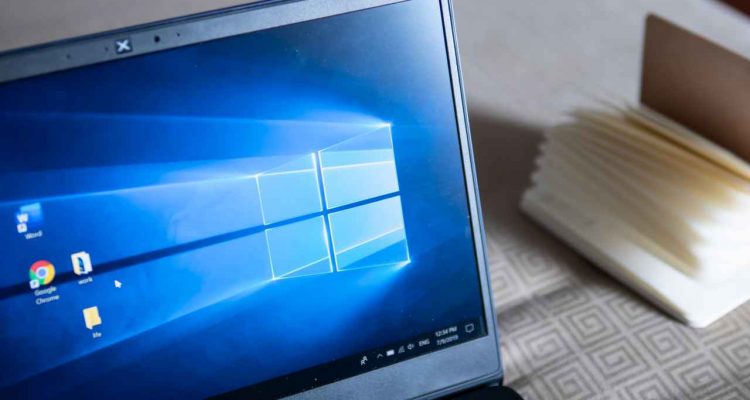
Mastering VPN Connections on Windows 10

by DMG Webmaster December 31, 2023
written by DMG Webmaster

If you’ve been wondering how to step up your online privacy and security game on your Windows 10 computer, using a Virtual Private Network (VPN) is a great move. Whether you’re a tech newbie or a savvy user, setting up a VPN on Windows 10 is easier than you might think. Let’s explore the various ways you can install and use a VPN, including app-based solutions, manual configurations, and even router-level setups.

Why Use a VPN on Windows 10?

A VPN encrypts your internet connection, keeping your online activities private and secure. It’s an essential tool for protecting your personal information from hackers, especially when using public Wi-Fi. Plus, it allows you to bypass geo-restrictions and access content from around the world.

Method 1: Using a VPN Application

  1. Choose a VPN Provider: Pick a reliable VPN service. Popular choices include NordVPN, ExpressVPN, and CyberGhost. These services offer robust security, fast speeds, and a user-friendly interface.
  2. Download and Install the VPN App: Go to your chosen VPN provider’s website, sign up, and download their Windows 10 application.
  3. Install the Application: Run the downloaded file and follow the installation prompts. It’s usually as simple as clicking ‘Next’ a few times and then ‘Finish’.
  4. Log In and Connect: Open the app, log in with your credentials, and select a server to connect to. Many VPN apps suggest the best server based on your location.
  5. Enjoy Secure Browsing: Once connected, your internet traffic is encrypted. You can now browse, stream, and download with enhanced privacy and security.

Method 2: Manual VPN Setup on Windows 10

If you prefer not to install additional software, Windows 10 allows you to set up a VPN connection manually.

  1. Obtain VPN Information: You’ll need the server address and login credentials from your VPN provider. These are typically available on their website.
  2. Open VPN Settings: Go to ‘Settings’ > ‘Network & Internet’ > ‘VPN’. Click ‘Add a VPN connection’.
  3. Enter VPN Details: In the ‘VPN provider’ dropdown, select ‘Windows (built-in)’. Fill in the connection name, server name or address, VPN type, and your login credentials.
  4. Connect to the VPN: Select the VPN connection you just created and click ‘Connect’. Your online activities are now encrypted.

Method 3: Installing a VPN on Your Router

For an all-encompassing solution, you can install a VPN directly on your router. This way, every device on your network, including those that don’t support VPNs natively, will have VPN protection.

  1. Choose a Router-Compatible VPN: Ensure your VPN and router are compatible. Some VPNs provide specific firmware for certain router models.
  2. Access Router Settings: Enter your router’s IP address in a web browser to access the settings. You might need to consult your router’s manual or online support for detailed instructions.
  3. Configure the VPN: Navigate to the VPN section in your router’s settings and enter the details provided by your VPN service.
  4. Save and Reboot: Save the settings and reboot your router. All connected devices, including your Windows 10 computer, are now under VPN protection.

Additional Tips for Using a VPN on Windows 10

  • Use a Kill Switch: A VPN kill switch halts internet traffic if the VPN connection drops, preventing data leaks. Most VPN apps offer this feature.
  • Regularly Update Your VPN: Keep your VPN software updated for the latest security enhancements and features.
  • Check for Leaks: Occasionally check for IP or DNS leaks to ensure your VPN is functioning correctly.
  • Follow Legal Guidelines: Always use your VPN responsibly and within the boundaries of legal guidelines.

Conclusion

Installing and using a VPN on your Windows 10 computer is a straightforward process that greatly enhances your online security and privacy. Whether you choose the ease of a VPN app, the simplicity of a manual setup, or the comprehensive coverage of a router installation, you’re taking a significant step in protecting your digital life. Enjoy your secure and private browsing experience!

December 31, 2023 0 comment
0 FacebookTwitterPinterestEmail
Hardware and Software Guides

A Guide on Setting up a VPN on Your PlayStation 4 Console

by DMG Webmaster December 31, 2023
written by DMG Webmaster

If you’ve ever wondered about using a VPN with your PS4, you’re in the right place. Whether it’s to access games from other regions, improve online gaming security, or just explore new content, setting up a VPN on your PS4 can open up exciting possibilities. Let’s go through this in a simple, straightforward manner.

Why Consider a VPN for Your PS4?

First off, why a VPN? Well, it’s like having a special pass in the gaming world. With a VPN, you can access games that are only available in certain countries, protect your online presence from potential threats, and sometimes even improve connection speeds for a smoother gaming experience.

Method 1: Through Your Router – The All-in-One Approach

One of the most effective ways to use a VPN with your PS4 is through your router. This method provides a VPN connection to every device in your home, including your PS4, without needing to configure each device separately.

Here’s what I did: I checked if my router supports VPN connections. After choosing a VPN provider, I followed their instructions to set up the VPN on my router. This involved entering the VPN details into my router’s settings.

Once that was set up, my PS4 was automatically connected to the VPN. This method is great for a “set it and forget it” approach, giving you VPN benefits without needing to adjust settings every time you play.

Method 2: Using a Computer – The Bridge Connection

If modifying your router settings seems daunting, you can use your computer as a bridge. This involves installing the VPN on your computer and then sharing the connection with your PS4.

First, I installed the VPN software on my PC. Then, I connected my PS4 to my computer using an Ethernet cable. On my PC, I accessed ‘Network and Sharing Center’, clicked on ‘Change adapter settings’, found the VPN connection, and enabled sharing. This allowed my PS4 to use the VPN connection via my computer.

This method works well if you want your PS4 to exclusively use the VPN connection. However, it requires your computer to be on whenever you want to use the VPN on your PS4.

Method 3: The Smart DNS Route – The Simple Workaround

A Smart DNS isn’t a VPN in the full sense, but it’s a straightforward way to access geo-restricted content. It’s perfect if your primary goal is accessing games and services from other regions without the extra security layer of a VPN.

Setting this up on the PS4 was pretty easy. I subscribed to a Smart DNS service, got a new DNS server address, and then changed the DNS settings on my PS4. While this method doesn’t encrypt your connection like a VPN, it’s a simple solution for bypassing regional restrictions.

Wrapping Up: Your PS4, Your Choice

So there you have it, three ways to connect your PS4 to a VPN. Whether you opt for the comprehensive solution of setting it up on your router, the flexibility of using your computer, or the simplicity of a Smart DNS, each method has its own advantages.

Consider what you’re looking for – is it security, ease of access, or just a quick way to jump into games from other regions? Your choice will define your PS4 online experience.

December 31, 2023 0 comment
0 FacebookTwitterPinterestEmail
Hardware and Software Guides

A Guide to setting up a VPN for Torrenting on both Mac and PC

by DMG Webmaster December 31, 2023
written by DMG Webmaster

Hello there! If you’re into torrenting, you probably know that it’s essential to keep your online activities secure and private. That’s where a VPN (Virtual Private Network) comes in handy. Whether you’re using a PC or a Mac, setting up a VPN for torrenting isn’t as daunting as it sounds. Let me guide you through the process in a simple, straightforward way.

Understanding the Need for a VPN in Torrenting

Before diving into the setup, let’s briefly touch on why using a VPN for torrenting is a wise choice. A VPN encrypts your internet connection, keeping your download activities private and secure. It masks your IP address, preventing anyone from tracking your online behavior. This is crucial for maintaining anonymity and safety while torrenting.

Setting Up a VPN for Torrenting on a PC

  1. Choose a Reliable VPN Service: The first step is to select a VPN provider that supports torrenting, offers strong encryption, and has a no-logs policy. Some popular options include NordVPN, ExpressVPN, and CyberGhost. Remember, free VPN services may not offer the same level of security and speed as paid ones.
  2. Download and Install the VPN Application: Once you’ve chosen your VPN provider, visit their website, sign up, and download their application for Windows.
  3. Install the VPN Application: Follow the installation instructions. It usually involves running the downloaded file and following the on-screen prompts.
  4. Launch the VPN and Log In: After installing, open the VPN application. Enter your credentials to log in.
  5. Select a VPN Server: Choose a server location that supports torrenting. Some VPNs have specific servers optimized for this.
  6. Connect to the VPN: Hit the connect button to establish a VPN connection. Once connected, your internet connection is encrypted, and your IP address is hidden.
  7. Start Torrenting: Open your torrent client (like uTorrent or BitTorrent) and start torrenting. Ensure that the VPN is connected whenever you’re torrenting.

Setting Up a VPN for Torrenting on a Mac

  1. Choose a VPN Service: As with PC, pick a VPN that’s friendly for torrenting. Ensure it’s compatible with macOS.
  2. Download and Install the VPN Application: Go to the VPN provider’s website, sign up, and download the VPN client for macOS.
  3. Install the Application: Open the downloaded file and drag the VPN app to your Applications folder. Follow any additional installation steps provided.
  4. Open the VPN and Log In: Launch the VPN from your Applications folder and log in with your VPN account details.
  5. Select and Connect to a Server: Choose a server that allows torrenting. This could be a server in a country with torrent-friendly laws or a server specifically designed for P2P traffic.
  6. Verify the Connection: Before starting to torrent, make sure the VPN connection is stable. Some VPNs offer a kill switch feature that automatically stops internet traffic if the VPN connection drops, ensuring your IP address is never exposed.
  7. Start Torrenting: Open your preferred torrent client on your Mac and begin torrenting. Always make sure your VPN is active while you’re engaged in torrent activities.

Additional Tips and Tricks

  • Use a Kill Switch: A kill switch is a critical feature in a VPN for torrenting. It prevents your device from accessing the internet if the VPN connection fails, keeping your real IP address hidden.
  • Check for DNS Leaks: Occasionally, check for DNS leaks – instances where your real IP address might be exposed despite using a VPN. There are free online tools to do this.
  • Stay Updated: Regularly update your VPN and torrent client to benefit from the latest security enhancements.
  • Follow Legal Guidelines: Always be mindful of the legal implications of torrenting. Ensure that you’re complying with the laws in your country.

Wrapping Up

Setting up a VPN for torrenting on both PC and Mac is pretty straightforward. The key is choosing a reliable VPN provider and ensuring that the VPN is always active while you’re torrenting. This setup not only secures your internet connection but also keeps your torrenting activities private and anonymous.

December 31, 2023 0 comment
0 FacebookTwitterPinterestEmail
Hardware and Software Guides

A Guide on Setting up a VPN on Your Nintendo Switch Console

by DMG Webmaster December 31, 2023
written by DMG Webmaster

Hello, Nintendo Switch enthusiasts! Today, I’m sharing my experience of navigating the sometimes tricky but always rewarding waters of setting up a VPN on my Nintendo Switch. Whether you own the sleek Switch Lite, the classic Original, or the vibrant OLED model, I’ve got you covered.

Why a VPN on a Nintendo Switch?

Before we jump in, let’s talk about why you might want a VPN for your Switch. With a VPN, you can access games and content available in other countries, protect your online activities from prying eyes, and even potentially get better deals on games. It’s like having a special power-up in your gaming arsenal!

Method 1: The Router Setup – “One VPN to Rule Them All”

Setting up a VPN on your router is like equipping a master key for all your internet-connected devices, including your Nintendo Switch, regardless of its version. This method encrypts and reroutes your entire internet connection through the VPN.

Here’s what I did: First, I checked if my router was VPN-compatible. Not all routers support VPN connections directly, so this is crucial. After selecting a VPN provider, I followed their guide to configure the VPN on my router. This typically involved logging into the router’s settings and inputting the VPN details.

Once done, my Switch – along with every other device in my house – was connected to the VPN. This meant I could access games from other regions and enhance my online privacy. The only trade-off? A potential decrease in internet speed due to the VPN encryption.

Method 2: The Mobile Hotspot – “The Handy Sidekick”

Not keen on the router method? Here’s a nifty alternative: using your smartphone as a mobile hotspot. This is especially handy if you own a Switch Lite or OLED model, which you might often use on the go.

First, I set up a VPN on my smartphone and activated the VPN service. Then, I turned on the mobile hotspot feature on my phone. On my Switch, I went to the Wi-Fi settings and connected to my phone’s hotspot. Voilà! My Nintendo Switch was now cruising the internet via a VPN-secured connection.

This method is great for temporary VPN access and doesn’t require any complex setup. However, it does eat into your phone’s data plan and battery life, so keep that charger handy!

Method 3: The Smart DNS – “The Speedy Alternative”

Lastly, let’s talk about using a Smart DNS service. While it’s not a full-fledged VPN, it’s an excellent option for bypassing geographical restrictions without the additional encryption layer.

Setting up a Smart DNS on the Nintendo Switch was surprisingly straightforward. After subscribing to a Smart DNS service, I received a specific DNS server address. On my Switch, I simply changed the DNS settings to this new address, and just like that, I was able to access games and content not available in my region.

Remember, though, that Smart DNS doesn’t offer the same security features as a VPN. It’s more about access and less about privacy.

Final Thoughts: Your Gaming, Your Choice

And there you have it – three different ways to connect your Nintendo Switch to a VPN. Whether you prefer the comprehensive coverage of the router setup, the flexibility of the mobile hotspot, or the simplicity and speed of the Smart DNS, there’s an option that fits your gaming lifestyle.

Each method has its own set of pros and cons, so think about what matters most to you. Is it privacy and security, ease of access, or a balance of both? Your choice will shape your online gaming experience.

So, gear up, choose your path, and enjoy a world of unrestricted, secure gaming on your Nintendo Switch. Here’s to new adventures and uncharted gaming territories!

December 31, 2023 0 comment
0 FacebookTwitterPinterestEmail
Hardware and Software Guides

A Complete Guide to Setting up a VPN on Your Xbox One

by DMG Webmaster December 31, 2023
written by DMG Webmaster

Today, I’m going to share my journey of setting up a VPN on my Xbox One. Why, you ask? Well, for starters, a VPN (Virtual Private Network) on an Xbox can open up a whole new world of gaming possibilities, like accessing games only available in certain countries or protecting yourself against potential online threats.

So, grab your favorite snack, and let me walk you through the different methods I explored to get that sweet, sweet VPN connection on my Xbox One. It’s easier than beating the first level of Super Mario!

Method 1: The Router Setup – The “Boss Level” Method

First off, the most straightforward way (but kind of like a boss level in terms of complexity) is to install the VPN directly on your router. This method ensures that every device connected to your router, including your Xbox One, gets VPN protection.

I won’t lie – setting this up took a bit of effort. First, I had to make sure my router was VPN-compatible. After some Googling, I found out that not all routers support VPNs directly. Luckily, mine did! Then, it was a matter of choosing a VPN provider, signing up, and following their instructions to configure the VPN on my router. This usually involved logging into my router’s settings and entering the VPN details provided by the VPN service.

Once set up, my Xbox One was automatically using the VPN connection. The cool part? I could access games from other regions and noticed an improvement in my online privacy. The downside, however, was that all my home devices were now routed through the VPN, which could sometimes slow down my internet speed.

Method 2: The Computer Connection – The “Tech-Savvy Sidekick” Method

Not keen on messing with your router settings? No problem! The next method I tried was sharing a VPN connection from my computer. This felt like having a tech-savvy sidekick in a tough RPG game.

Here’s how it went: I installed the VPN software on my PC (which was way easier than the router setup). Then, I connected my Xbox One to my computer using an Ethernet cable. On my PC, I went to the ‘Network and Sharing Center’, clicked on ‘Change adapter settings’, and found my active VPN connection. Right-clicking on it, I selected ‘Properties’, went to the ‘Sharing’ tab, and checked the option that allowed other network users to connect through this computer’s internet connection. Voila! My Xbox was now connected to the VPN via my PC.

This method worked like a charm, giving my Xbox One a direct line to the VPN without affecting other devices. The downside? It required my PC to be on and connected whenever I wanted to use the VPN on my Xbox.

Method 3: The Smart DNS – The “Sneaky Shortcut” Method

Lastly, I explored the Smart DNS route. It’s not a VPN in the traditional sense but acts like a sneaky shortcut in a game. Smart DNS services allow you to bypass geographical restrictions without the encryption of a VPN. This means faster speeds but less security.

Setting this up was a breeze. I subscribed to a Smart DNS service, received a new DNS server address, and simply changed the DNS settings on my Xbox One. This method was perfect for quickly jumping into games or streaming services not available in my region. However, remember, a Smart DNS doesn’t encrypt your data like a VPN, so it’s more about access than security.

Wrapping It Up: Choose Your Path Wisely

So there you have it – three different ways to get a VPN up and running on your Xbox One. Each method has its perks and quirks. Installing a VPN on your router offers a one-stop solution for all devices but can slow down your internet. Connecting through a PC is great for dedicated Xbox VPN usage but requires a bit of a setup. And using a Smart DNS is the fastest way to bypass regional blocks, minus the extra security layer.

Choosing the right path depends on what you’re looking for. Want full security and privacy? Go for the router setup. Need a quick and easy way to access games and services from other regions? The Smart DNS might be your best bet. And if you want a mix of both, the computer connection method is your middle ground.

Happy gaming, and may your online adventures be lag-free and secure!

December 31, 2023 0 comment
0 FacebookTwitterPinterestEmail
Hardware and Software Guides

Understanding VPNs and Proxies: A Dive Into Online Privacy

by DMG Webmaster December 31, 2023
written by DMG Webmaster

Today, let’s talk about something we often hear about but might not fully understand – VPNs and proxies. You’ve probably heard these terms tossed around, especially when it comes to online privacy and security. So, grab a cup of coffee, and let’s unravel this mystery together in a simple, easy-going way!

The Basics: What’s a VPN?

First off, VPN stands for Virtual Private Network. Think of it as your personal superhero cape for the internet. When you use a VPN, it’s like you’re creating a secret tunnel for your internet activities. Everything you do online – whether it’s watching videos, shopping, or just browsing – gets encrypted. This means it’s scrambled in a way that no one, not even your internet service provider, can peek into. Pretty cool, right?

I use a VPN for various reasons. When I’m at my favorite coffee shop using their Wi-Fi, a VPN keeps my browsing safe from prying eyes. It’s also my go-to tool when I want to watch shows that aren’t available in my country. VPNs have servers all over the world, so I can appear to be surfing the web from practically anywhere. It’s like digital globe-trotting without leaving my couch!

But here’s the catch – most good VPN services aren’t free. I mean, you get what you pay for, right? Plus, sometimes my internet speed takes a slight hit because of all the encryption going on. But for the sake of privacy and security, I’d say it’s a small price to pay.

And Then There’s the Proxy

Now, let’s chat about proxies. A proxy is like a middleman between you and the internet. When you use a proxy, your internet request goes to the proxy server first, and then it reaches the website you want to visit. The cool part? The website thinks the request is coming from the proxy, not you. So, your actual location and IP address stay hidden.

I use proxies when I need a quick and easy way to change my online location. They’re great for bypassing geo-restrictions on websites. But, and it’s a big but, proxies don’t encrypt my data like VPNs do. This means that while others might not see my location, my online activities aren’t exactly private. Plus, many proxies are free or cheaper than VPNs, which is a bonus if you’re just looking to bypass a location block.

So, What’s the Real Difference?

Alright, let’s break it down. The main thing about VPNs is they offer a whole package – privacy, security, and the ability to pretend you’re browsing from another country. They encrypt everything you do online, which is a big deal if you’re serious about keeping your digital life private.

Proxies, on the other hand, are more about hiding your location without the added encryption. They’re like your basic invisibility cloak – great for a specific purpose, but not as protective as the full armor a VPN provides.

Choosing What’s Right for You

Deciding between a VPN and a proxy comes down to what you need. If you’re like me and want to keep your online activities as private as possible, a VPN is the way to go. Sure, it might cost a bit, and sometimes things might load a bit slower, but peace of mind and security are worth it.

But if you’re just looking to quickly access a website that’s not available in your country, or maybe do some light browsing without revealing your location, a proxy might be all you need. Just remember, it won’t keep your activities private from your internet service provider or protect you from the baddies on public Wi-Fi.

Wrapping It Up

In this digital age, where our online presence is almost as important as our real-life one, knowing how to protect ourselves is crucial. VPNs and proxies are two tools that offer different levels of protection and privacy. It’s like choosing between a bicycle and a car – both get you where you need to go, but the experience and protection differ.

So next time you’re about to dive into the vast ocean of the internet, consider what you need for your journey. Whether it’s the full-fledged security of a VPN or the simpler, location-hiding abilities of a proxy, you’re now equipped to make a more informed choice. Stay safe and happy browsing!

December 31, 2023 0 comment
0 FacebookTwitterPinterestEmail
VPN-Error-812
Troubleshooting Hardware and Software

[Solved] VPN Error 812 in Windows 10

by DMG Webmaster December 31, 2023
written by DMG Webmaster

We all like issues that can be fixed with the press of a button and don’t require too much technical knowledge. Unfortunately, the VPN Error 812 isn’t one of them. It tells you that there is a configuration issue, usually one related to connection authentication. And though the fixes are complex, our guide is anything but.

Fix #1: Tackle the Error 812 by configuring the External DNS settings

If you’ve dealt with the similarly-complex VPN Error 691 in the past, you’ll be familiar with this step. If not, we’ll quickly navigate you through it for a fix that is often all that’s needed to fix the Error 812, as difficult as it might seem.

Press the Windows Key + R to open the Run menu. Once it’s up, type in ncpa.cpl, find your VPN connection, right click on it and go into Properties.

First, make sure that the Primary DNS is set to Domain Controller and then head to the Secondary DNS to modify the External DNS settings.

The Primary DNS’ range should be set to 8.8.8.8, and if it isn’t, set it and restart the VPN after confirming the settings. While this usually fixes the problem, there are still steps to take if Error 812 keeps coming up.

Fix #2: Modify the Network Policy settings

Because the Error 812 often comes up after an update, a few quick tweaks to the Network Policy might do the trick. In the Network Policy menu, find the Tunnel type Condition and press on the given Condition, which will either be set as L2TP or PPTP.

Whichever Condition you have, select the other one, press OK and then restart the VPN. Try to connect and see if you’re still getting the Error 812. If you are, go back to the Network Policy menu, revert to the original setting and restart the VPN once again before attempting to connect.

Fix #3: Reinstall the VPN, try another VPN or talk to your network administrator

By now, we’ve pretty much covered everything you can do to fix Error 812 with limited access to the network. Since we mentioned that this error frequently appears after an update, one thing you can attempt to do is to reinstall the VPN software on your own machine, and then afterwards all of the other machines in the office as well.

If this error came up as soon as you started using a VPN, one thing to try is to switch to another VPN client altogether. We like Ivacy VPN in our office, as it’s well-suited for enterprise solutions, easy to set up and use and hasn’t given us this or any other errors that complicate things. Alternatively, talk to your network administrator or someone within tech support, as exhausting the aforementioned solutions means that better access and familiarity will likely be needed to resolve things.

December 31, 2023 1 comment
0 FacebookTwitterPinterestEmail
Newer Posts
Older Posts

Recent Posts

  • VPN Quiz Helper
  • Five Best Routers for Households with Multiple Devices
  • How to Install a VPN on Your Modem
  • A Guide on how to Install a VPN on Your Router
  • A Guide on Using a VPN on an iPhone

Recent Comments

  1. D-Link Announced Industrial Access Points for Industry X.0 - Network Headlines on The History Behind D-Link, Ken Kao and Their Roots
  2. [Solved] VPN Error 720, can't connect to a VPN connection - Network Headlines on [Solved] VPN Error 812 in Windows 10
  3. [Solved] VPN Error 812 in Windows 10 - Network Headlines on [Solved] VPN Error 691 when connecting
  4. [Solved] VPN Error 691 when connecting - Network Headlines on [Solved] VPN Error 619, incomplete connection error
  5. [Solved] Error 789 Pops up with a VPN - Network Headlines on [Solved] VPN Throws an Error 807 Tantrum
  • Facebook
  • Twitter

@2021 - All Right Reserved. Designed and Developed by PenciDesign


Back To Top
Network Headlines
  • Home