
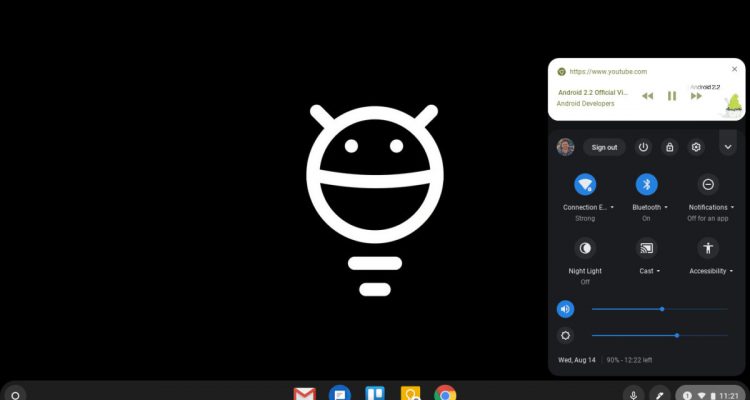
Chrome OS, known for its simplicity and speed, is a popular choice for many users. Pairing it with a Virtual Private Network (VPN) can significantly enhance your online experience. This guide provides detailed instructions on how to use a VPN with Chrome OS, along with valuable tips, tricks, and insights into the benefits of this combination.
Benefits of Using a VPN on Chrome OS
1. Enhanced Privacy and Security: VPNs encrypt your internet connection, protecting your data from hackers, especially when using public Wi-Fi networks.
2. Access Restricted Content: A VPN can bypass geo-restrictions, allowing you to access a broader range of content, including websites and streaming services.
3. Safe Browsing: With a VPN, your browsing history and online activities are private, reducing the risk of tracking and data mining.
Setting Up a VPN on Chrome OS
1. Choose a VPN Provider: Select a VPN that is compatible with Chrome OS. Providers like NordVPN, ExpressVPN, and CyberGhost have dedicated support for Chrome OS.
2. Install the VPN App or Extension:
- If your VPN provider offers a Chrome OS app, download it from the Google Play Store and install it.
- Alternatively, many VPN services offer Chrome extensions. Install the extension directly from the Chrome Web Store.
3. Configure VPN Settings:
- Open the VPN app or extension.
- Log in with your VPN account details.
- Choose a server location and connect.
Using VPN with Chromebook’s Built-in Feature
1. Gather VPN Details: Obtain the server address, provider type (L2TP/IPsec or OpenVPN), and login credentials from your VPN provider.
2. Access Chrome OS Settings:
- Click on your account photo in the bottom right corner.
- Select ‘Settings’ > ‘Network’ > ‘Add connection’ > ‘Add OpenVPN/L2TP’.
3. Enter VPN Information:
- Input the details provided by your VPN service, including server hostname, service name, provider type, username, and password.
- Save the configuration and connect.
Tips and Tricks for a Better VPN Experience on Chrome OS
1. Always-On VPN: For continuous security, set your VPN to connect automatically at startup. This ensures you’re always protected.
2. Server Selection: Experiment with different server locations for optimal speed and content access. Some servers may offer faster connections or access to specific geo-blocked content.
3. Keep it Updated: Regularly update your VPN app or extension to benefit from the latest security enhancements and features.
4. Use a Split Tunneling Feature: If your VPN offers split tunneling, utilize it to choose which apps go through the VPN and which ones use a direct internet connection.
5. Monitor Performance: Be aware of your Chromebook’s performance while using a VPN. Adjust settings if you notice significant slowdowns.
Advanced Tips
1. Secure Wi-Fi Networks: Always use VPN on public Wi-Fi networks to protect your data from potential threats.
2. Check for Leaks: Regularly check for DNS and IP leaks to ensure your VPN is functioning properly and your real IP address isn’t exposed.
3. VPN for Specific Tabs: If your VPN has a Chrome extension, you can often choose to enable VPN protection for specific tabs instead of the entire browsing session.
Conclusion
Integrating a VPN with Chrome OS is a smart way to enhance your online security, privacy, and freedom. Whether you opt for a dedicated app, a Chrome extension, or the built-in VPN feature of Chrome OS, the steps are straightforward. By following this guide and utilizing the tips and tricks provided, you can ensure a safe, private, and unrestricted browsing experience on your Chrome OS device. Enjoy the peace of mind and expanded possibilities that come with using a VPN on Chrome OS!
